
Recent Images · 最近图片
A photo wall for your desktop. A stop along the way.
Keep favorite photographs on your desktop, or gather screenshots, shared pictures and web images in one place. Copy or drag them into another app when you need them. One clothesline for enjoying pictures and getting things done.
Download for macOS12.0 MBmacOS 14+ · Apple silicon / Intel · Chinese interface
Developer ID signed · Notarized by Apple
Two everyday uses. One clothesline.
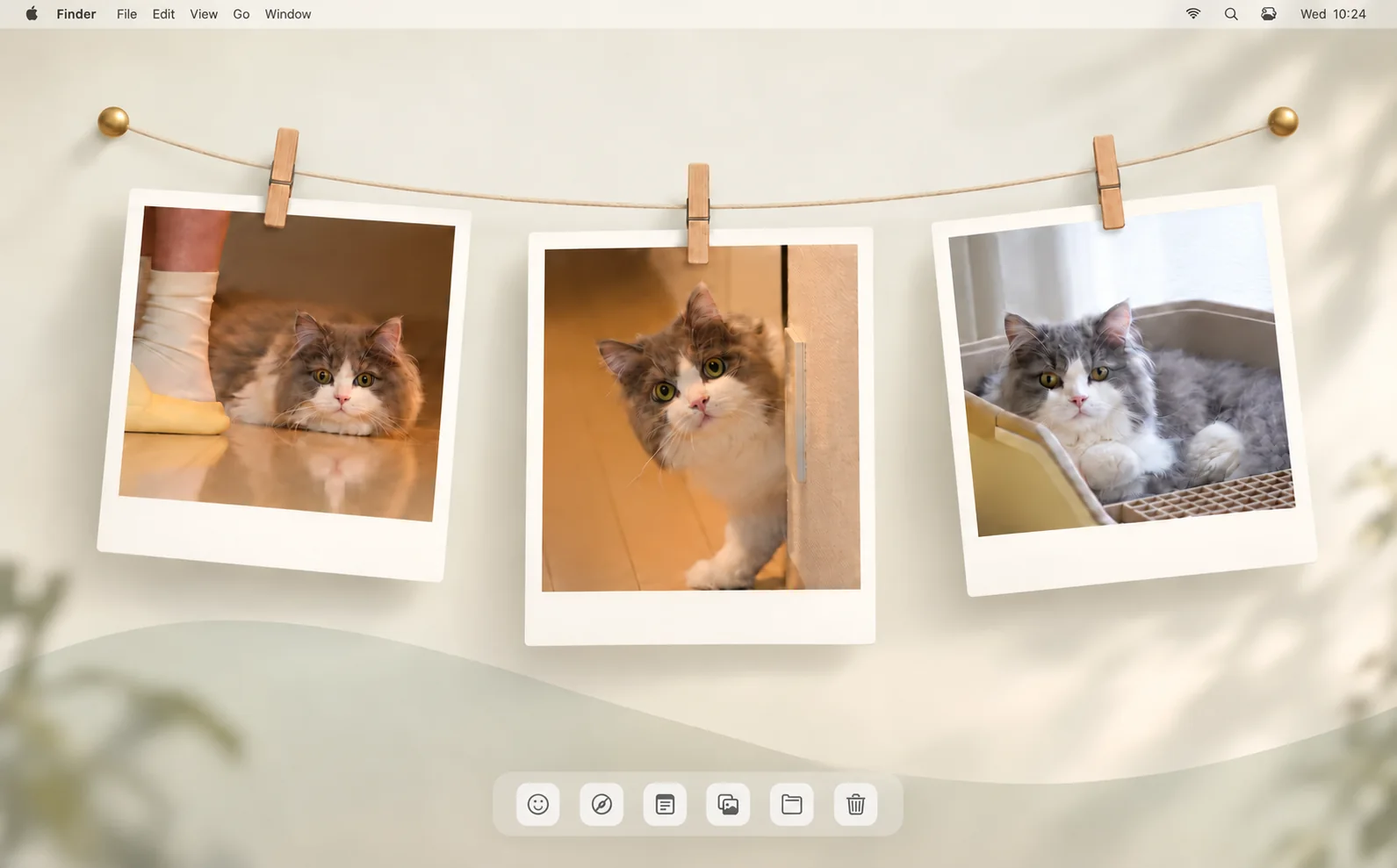
Both images are AI-generated scene illustrations, not app screenshots. Cat photographs from People and Pets by Zhengyang Li.
A little cat company for your desktop.
Keep a peek around the door, a moment by your feet and a cozy rest on your desktop. Arrange photos freely and keep their positions after a restart. Turn off Always on Top for quiet company while you work.
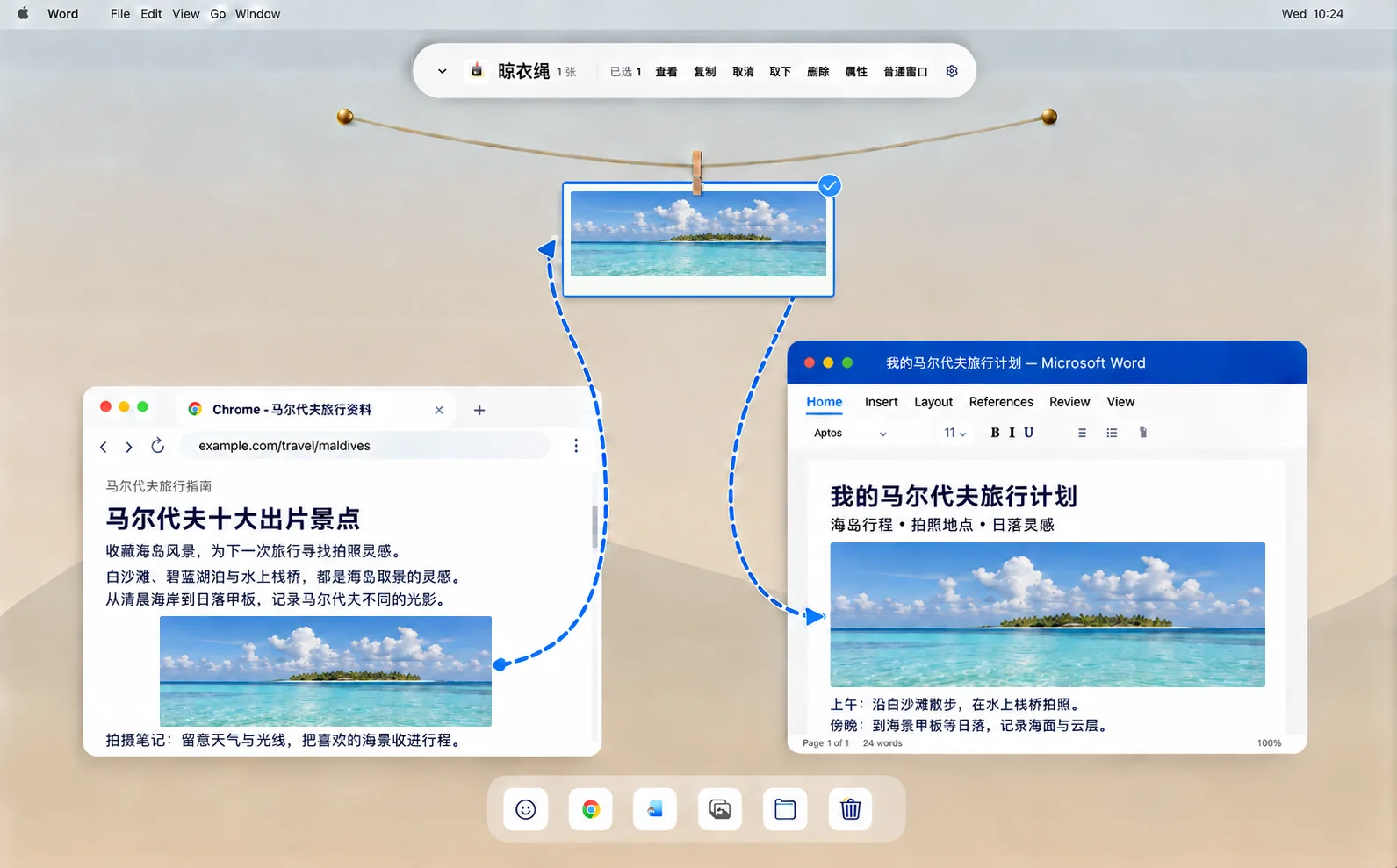
A view found online becomes part of your own story.
Maldives travel inspiration is open in Chrome, with a personal Maldives itinerary beside it in Word. Drag the seascape onto the clothesline, then into the document to keep reference images close at hand as you write. Blue dashed arrows illustrate the drag-and-drop steps; they are not part of the app interface.
Install & get started
Photos and usage history stay on your Mac- 01
Move to Applications
Open the DMG, drag 最近图片 into Applications, then launch it from there.
- 02
Choose source folders
Allow Desktop and Downloads, or add folders in Settings and save. Confirm the source folder if prompted on your first deletion.
- 03
Hang your first picture
Drag a favorite photo onto the rope. New photos in enabled source folders also join automatically. Click to select, double-click to preview, and take down when done.
Updates, permissions & help
Updates: checks daily and notifies you when a new version is available. Install when you choose; source folders, usage history and photo positions are retained. Users of 1.0 need to install this version manually once, then can update in the app.
1.3.4 (build 146): Choose whether the Space key opens photos in the in-app preview, the system default app, or a selected app. The help pane now uses two columns for shortcuts and fits its contents.
1.3.3 (build 143): Removes the “Drag photos in” text from an empty clothesline for a minimal appearance.
1.3.2 (build 142): Refines the large preview with a compact, single-row toolbar and improves paging through selected photos and first/last-page boundaries. Fixes Photos library authorization and clarifies deletion confirmations for local files and Photos originals. If an original cannot be found in the current System Photo Library, it is kept and guidance points to the appropriate library in Photos. Error messages can be dismissed, and paging remains available after a failed deletion.
1.3.2: Adds multi-step undo and redo for taking down, copying, moving and deleting local files (⌘Z / ⇧⌘Z), retaining the latest 20 steps for the current session. Fixes copy associations after redo. Retained copies are hung again, and only recycled copies are recreated, avoiding duplicates. Improves color consistency during dragging and saves settings groups independently so one failure does not block other changes.
1.3.1: Fixes prints briefly disappearing during repeated peg pickups. The count badge stays hidden inside the clothesline, shows the correct multi-selection count over Finder, and no longer displays “0” when returning. Smooth lifting and existing colors are preserved; file delivery, undo and Escape cancellation have been verified. Accepted on an external 60Hz display; 120Hz acceptance is still pending.
1.3: Prints lift smoothly when a peg is dragged, with consistent photo and peg colors. Return flicker and rope response during group dragging are improved. Double-click an empty rope segment to toggle compact mode, or drag it to move the window; the toolbar fits the available actions. Dropping a photo onto the rope now creates an independent copy directly, with button and ⌘Z undo. Selection, preview take-down and undo shortcuts are improved, along with thumbnail loading and state saving. Accepted on a 60Hz display; 120Hz acceptance is still pending.
1.2.5: Releasing a dragged photo inside its original print does nothing. Drag it onto the rope to highlight the target, then release to confirm whether to create an independent copy. Confirming saves the copy in the same default import folder used for browser images and hangs it on the rope; the original stays unchanged. Cancelling creates nothing. The app shows its saving state and temporarily disables related actions. Help now explains photo and peg dragging, copy storage and deletion.
1.2.4: The rope now sags continuously between the brass pins, removing flat sections and abrupt bends near the ends. Dragging a peg no longer leaves a translucent photo behind; cancelling restores it.
1.2.3: Spherical brass pins have smooth, rounded reflections. Slender wooden pegs show finer grain and metal spring details. Rope animation and dragging behavior stay the same.
1.2.2: Rounded brass tacks bring soft highlights and contact shadows to both ends of the clothesline. The rope flows smoothly beneath each tack with clean, continuous edges.
1.2.1: Toolbar buttons stay minimal at rest. On macOS 26 or later, native Liquid Glass appears on hover and disappears when the pointer leaves. Select All becomes Cancel in exactly the same position as actions expand to either side, so you can cancel without moving the pointer. Preview controls are simpler and wrap for narrow photos.
1.2: Drag the image to copy it while keeping the original and its place on the rope. Drag the peg to Desktop or another Finder folder to move the original file and take the photo down. Dropping into its original folder only takes it down, without duplicates. Filename conflicts receive a new name. Drag along the rope to reposition.
1.1: Drag photos from folders, Chrome webpages, Word or PowerPoint onto the rope or a hanging photo. Multiple images are supported and positions return after a restart. Web and document images are saved as independent local copies and remain available after the source closes. Ordinary local photos still reference the original file; moving it or disconnecting its disk may make it unavailable. The source must allow image dragging; private application objects may not import.
Windows stay on top by default. Turn off 晾衣绳与图库窗口置顶 in Settings, then choose 保存 (Save) or 保存并关闭 (Save and close) to use normal window layering. All settings pages share pending changes and apply them when saved; choices persist after restart. The interface adds slim wooden pegs, brass anchors, ivory prints and more compact preview controls.
Missing new pictures? Check that the app is running and the source is enabled and saved. If you collapsed the window, new pictures stay in the background; reopen it from the menu-bar photo icon or your global shortcut. If access was denied, allow 最近图片 in System Settings → Privacy & Security → Files and Folders, or select the source again in the app.
登录 Mac 后自动启动 means launch automatically when you sign in to your Mac, not an app account. No account is required, and photos are not uploaded to this website.
Take down changes the hanging state; dragging the peg into another folder also moves the file. Undo restores an ordinary take-down. Undo move attempts to return the file to its original folder and rope position; changed files or name conflicts are preserved with a message. Undo copy takes down the copied batch and trashes only unchanged, unused copies. Undo and redo retain up to 20 steps for the current session without expiring on other input. A new undoable action clears pending redo; quitting clears the history. Redo copy hangs retained copies again and recreates only recycled copies. Deletion requires confirmation: local originals go to Trash, while recognized Photos originals go to Recently Deleted through the photo library, including iCloud deletion when enabled. Web and document imports delete only the local copy. Cancelling deletion keeps the photo.
Accessibility permission is not needed for ordinary use. The optional AirDrop Finder-window helper requires it; it can close a newly opened Downloads window when matching conditions are met, but cannot prevent macOS from opening it first.
If macOS asks to confirm an app downloaded from the internet, check its source and choose Open. This package is signed and notarized; do not disable Gatekeeper or bypass security checks. If it appears damaged or cannot be verified, download it again and compare SHA-256.
Verify your download · SHA-25609a6706f2b1bf98a634988075d6ca4c393c06be38322363ebb05f3d2d4064000